In Tractorscope, getting started means signing in to your account, connecting a supported database, and building your first dashboard with live chart data.
Tractorscope is a hosted analytics platform. There is no desktop app or command-line package to install before you can use it.
To get started, sign in to Tractorscope, choose or create an account, connect a database, and create your first dashboard.
Before you begin
You need:
- A Tractorscope user account
- Access to a Tractorscope account or an invitation to join one
- Database connection details for at least one supported database
- Network access from Tractorscope to your database, either directly, through an SSH tunnel, or through fixed outgoing IPs
Supported databases
Tractorscope supports these database connection types:
- MySQL 5.7
- MySQL 8
- Postgres
- BigQuery
- LibSQL / Turso
- SingleStore
- MotherDuck
- DuckDB (Quack)
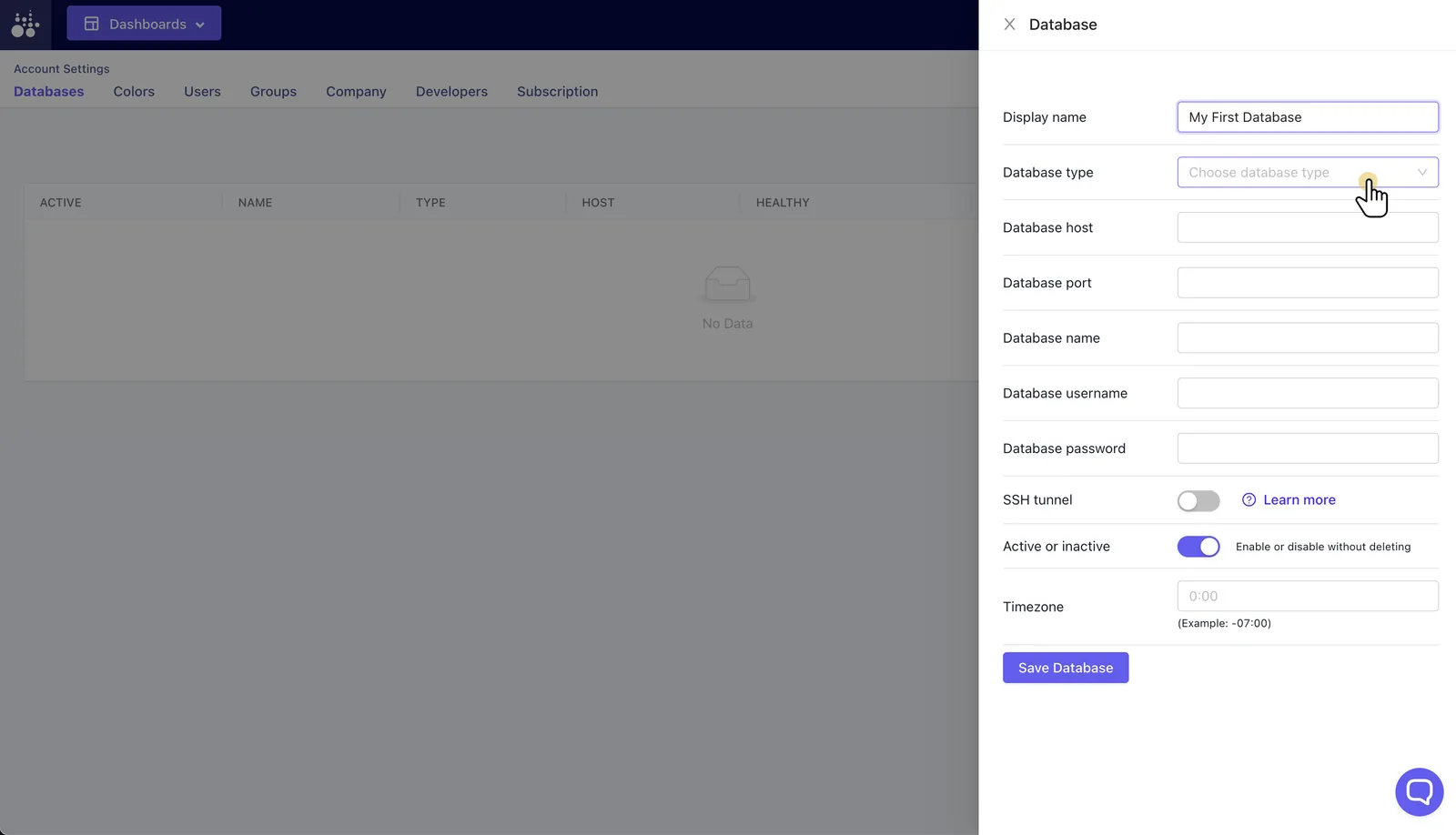
Database options vary by type. Depending on the database, you may configure host, port, database name, user, password, credentials, SSL, timezone, SSH tunnel settings, and fixed outgoing IP routing.
Start using Tractorscope
- Log in to Tractorscope.
- Choose an existing account or create a new account.
- Connect a database.
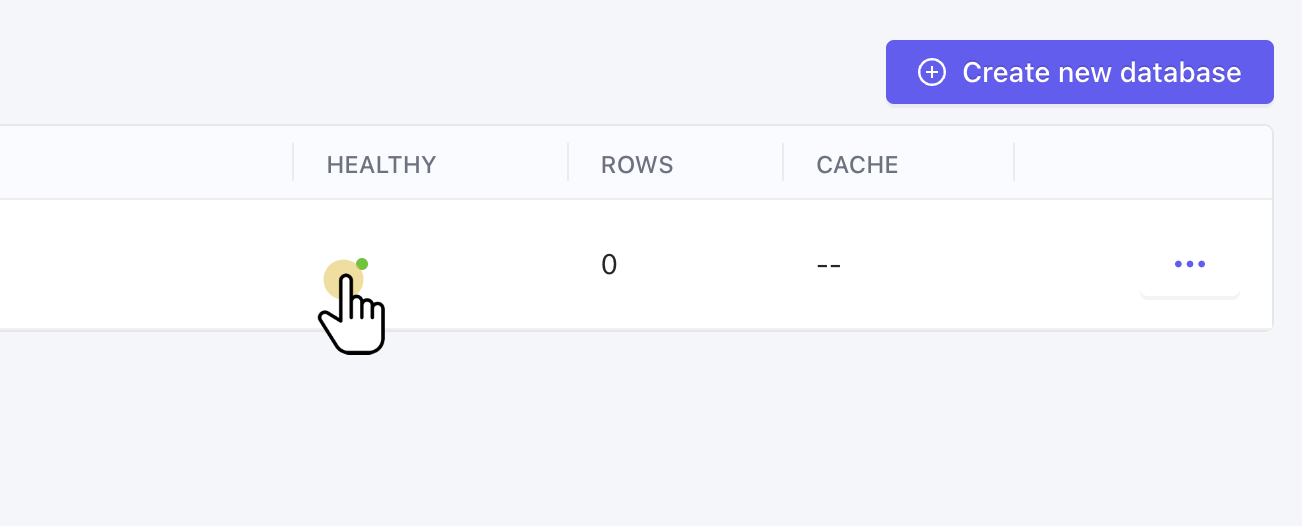
- Confirm the database health check succeeds.
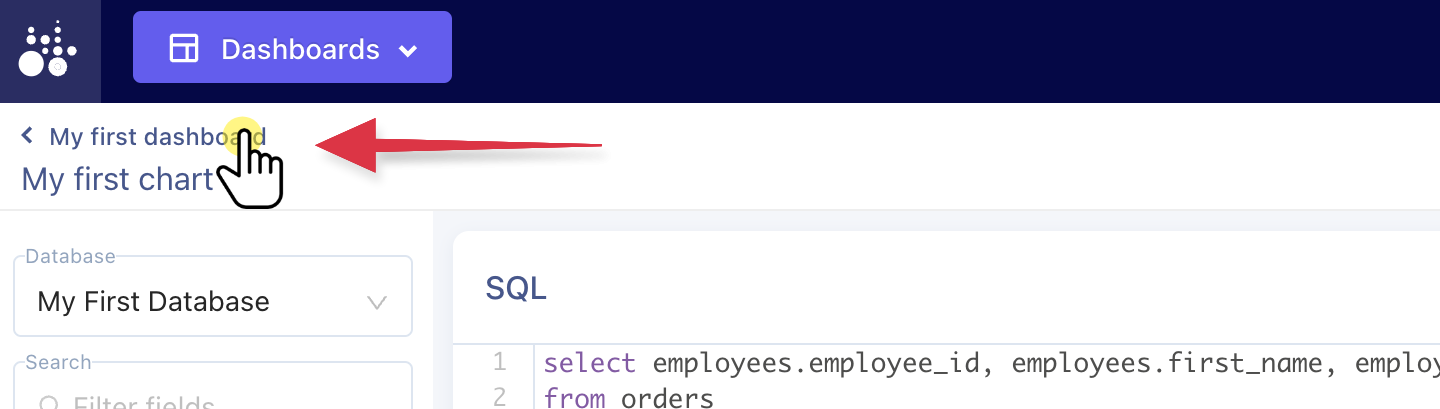
- Create your first dashboard and chart.
- Add dashboard filters when viewers need to change date ranges, aggregation periods, customers, accounts, regions, or other query inputs.
- Share the dashboard internally, create a shared dashboard view, or configure an embed link.
Connecting a database is the step most worth getting right first — the form validates the connection before it saves, and the list shows a health indicator afterwards:
Your first dashboard then looks like this, with the chart you just built on it:
Recommended next steps
- Configure an SSH tunnel if your database is not publicly reachable.
- Use fixed outgoing IPs if your database firewall requires allowlisted IP addresses.
- Create custom filters to make dashboards interactive.
- Configure dashboard embedding for customer-facing analytics.
- Invite users and create groups to control account access.